
 viaxen
Support
How to use Viaxen Log
1. Add a vehicle
There’s nothing to sign up for. The first time you open the app, three short welcome pages explain the garage, logging and reminders, then take you to Add Vehicle. You can skip them. Pick a category (Cars, Motorcycles, Boats / Marine, Heavy Equipment or Others), then the type, a name and whether it’s electric. Cars, motorcycles and Others use an odometer in km or miles. Boats and heavy equipment use engine hours.
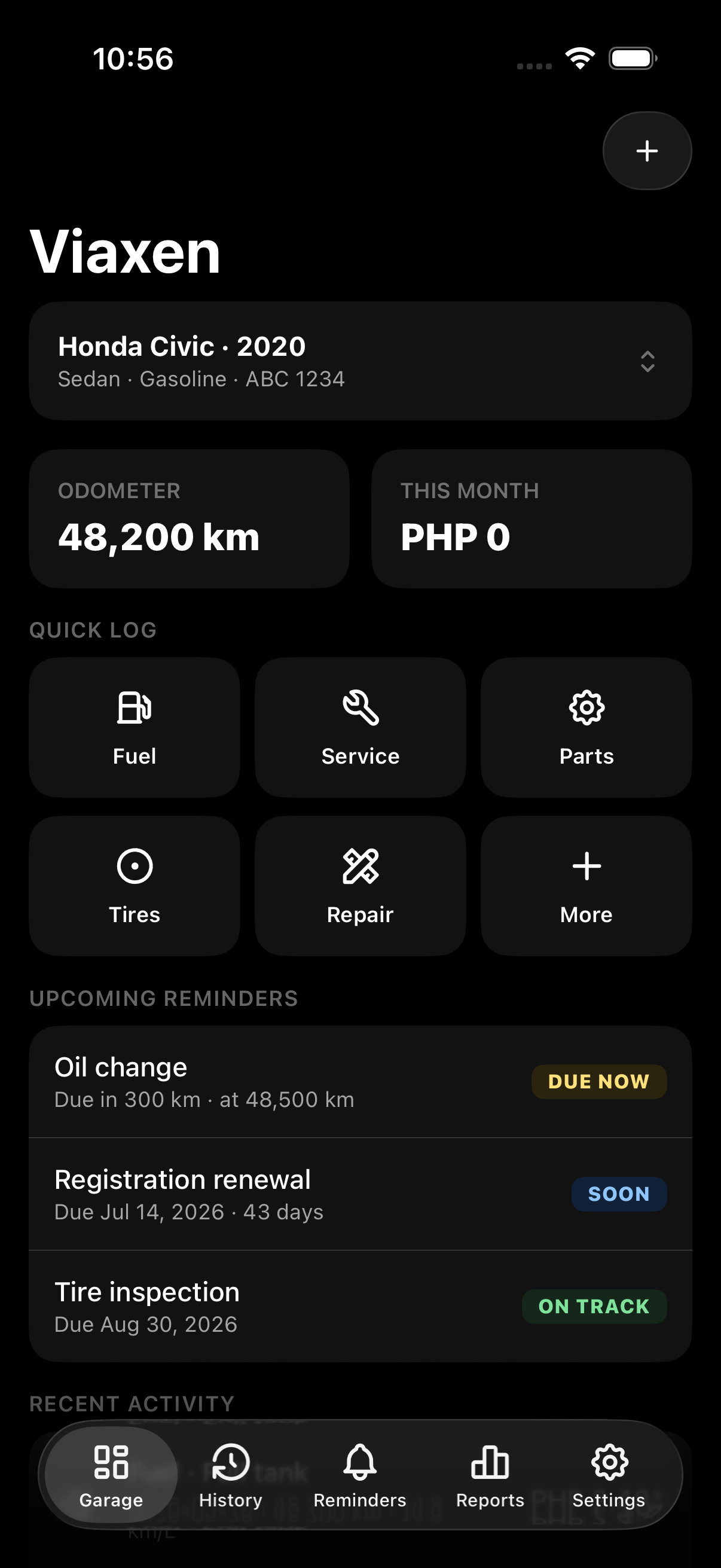
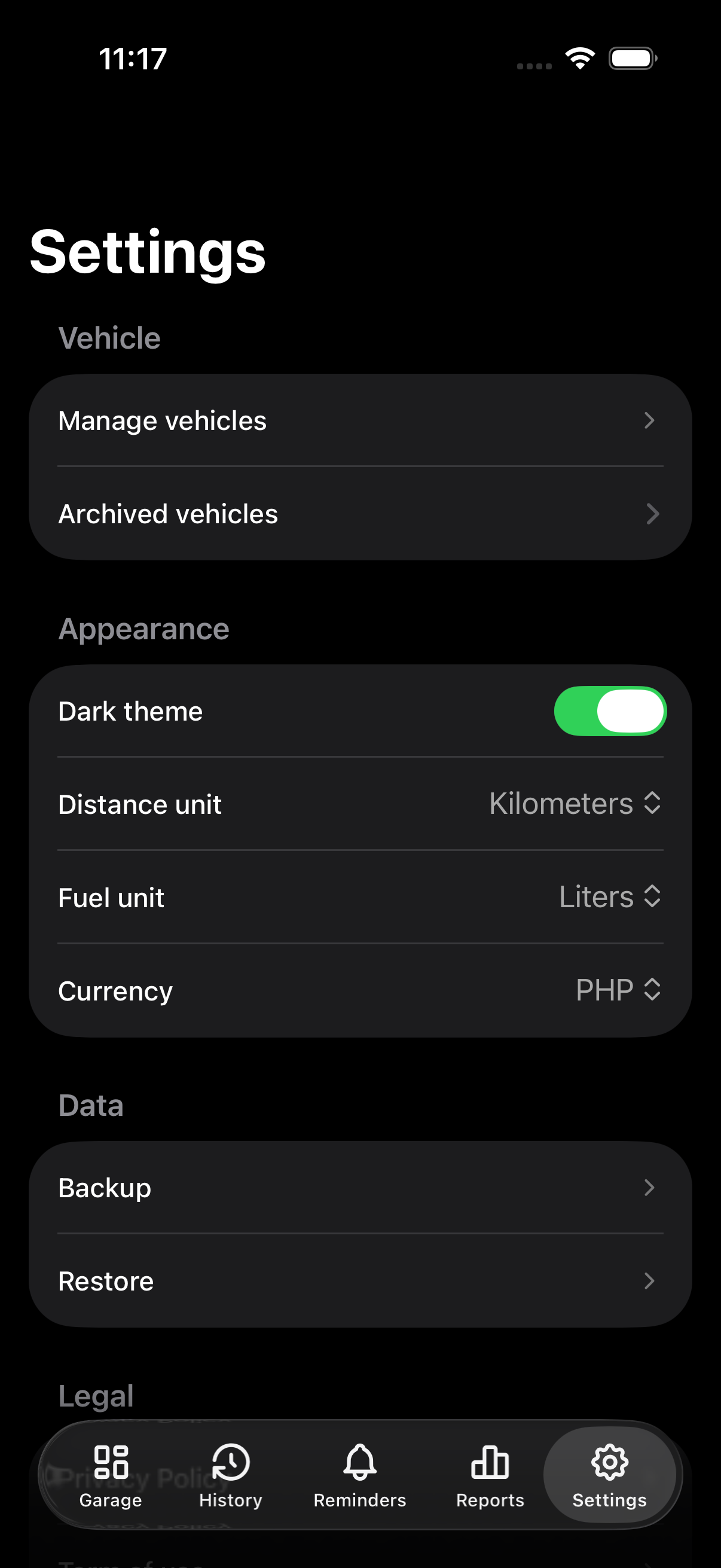
Garage, History, Reminders and Reports all show the vehicle you have selected. To switch, use the switcher in the Garage or tap Manage vehicles in Settings.
2. Log types
Each log type has its own form that only asks for what that type needs. Fuel asks for liters and an odometer reading, tires for position and size, documents for an expiration date. You can add a receipt photo or a note to any entry.
All 12 log types
Fuel (or Charge for electric vehicles), Service, Parts, Tires, Repair, Expense, Document, Inspection, Incident, Trip, Battery, Custom
3. History
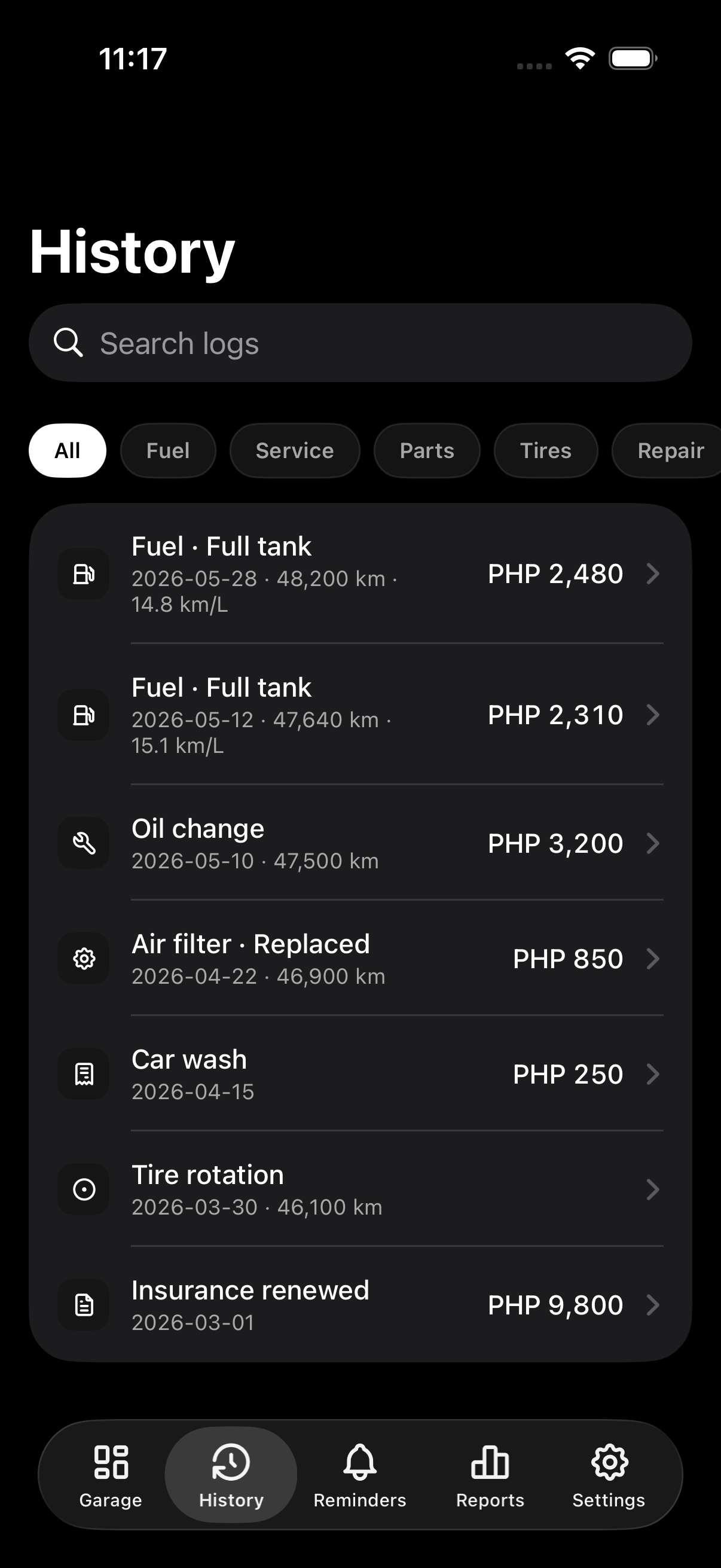
History lists every fuel-up, service, repair, part, tire job, expense and document for the selected vehicle, newest first. Tap an entry to see the full form as you filled it in, with its receipt photo and notes.
4. Reminders
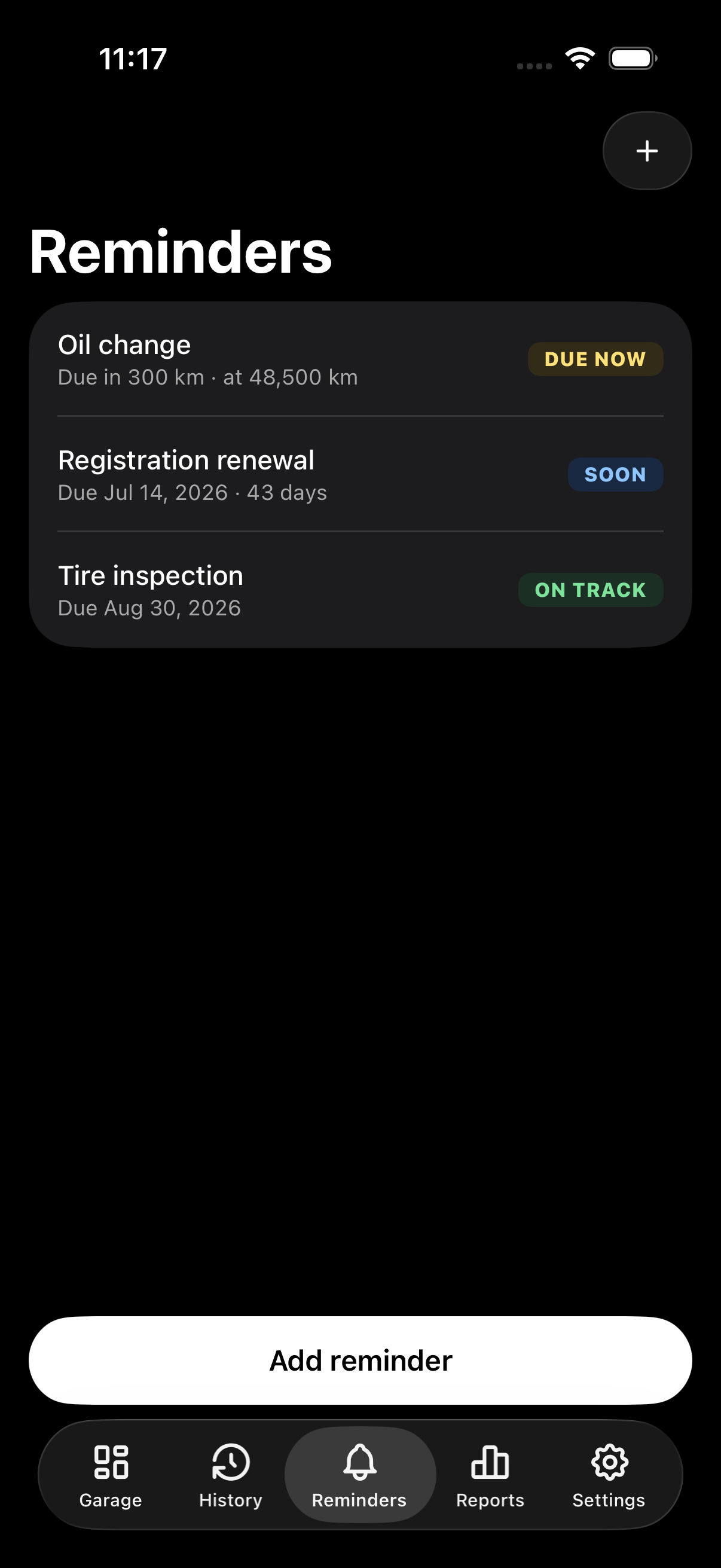
Set a reminder for a date and time (registration, insurance), for a mileage or engine-hours reading, or as a hybrid that goes off at whichever comes first. Viaxen Log checks reminders against the readings you log and sends a notification when one is due. Overdue reminders are listed first.
If you log a document with an expiration date, add a reminder for that date too so you get a notification before it runs out.
5. Reports
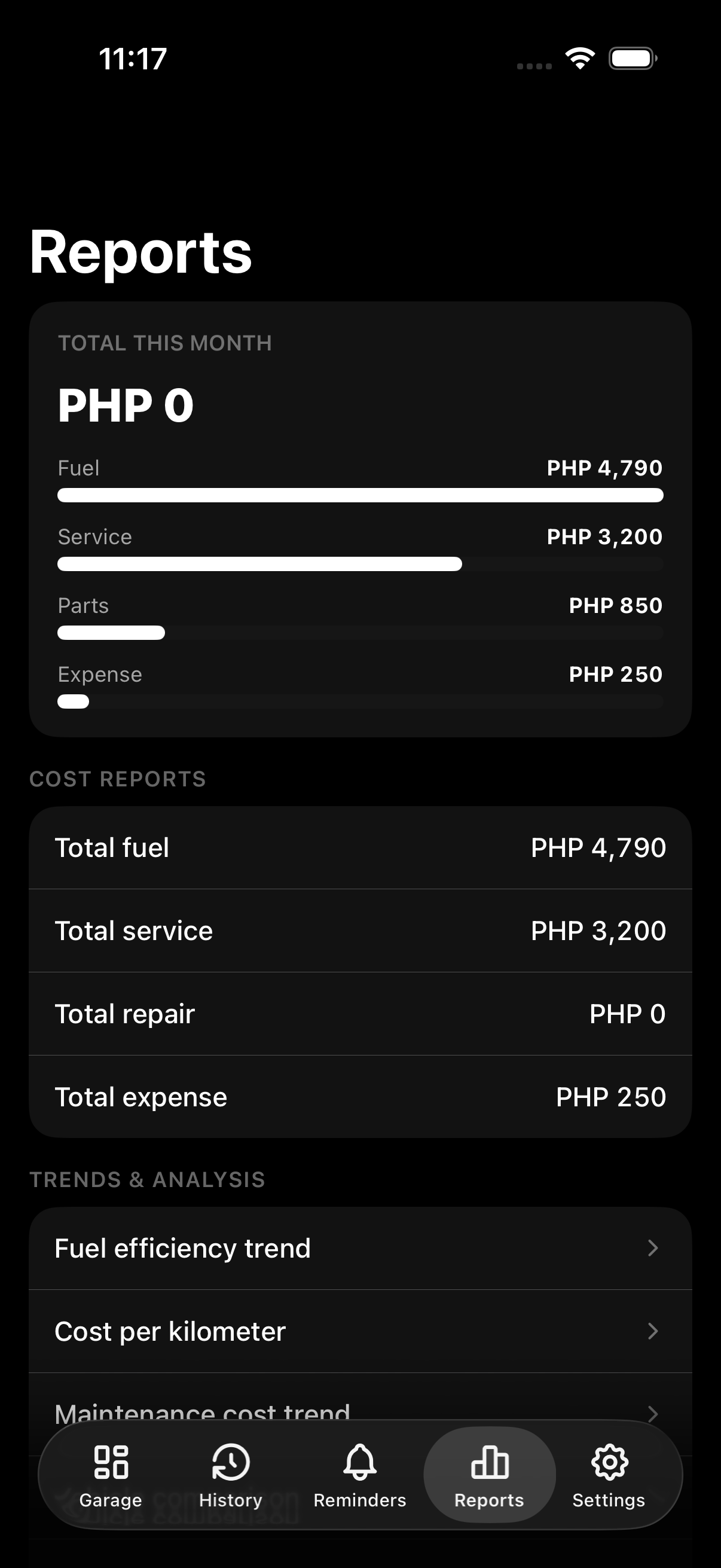
When you log a fuel-up, Viaxen Log works out the distance since your last fill, fuel efficiency and cost per km from your odometer readings. Reports totals your spending by month and by category (fuel, service, parts, expenses), so you can see if a vehicle is costing more to run over time.
6. Backup and restore
In Settings, under Data, Backup saves every vehicle, log and reminder to a JSON file, and you choose where it goes. Restore loads that file back on the same phone or a new one.
- Backup and restore works within the same platform (Android to Android, iOS to iOS). Moving a backup between Android and iOS isn't supported yet.
- Photos attached to vehicles or logs aren't included in the backup file.
7. Remove ads
Remove ads is a one-time purchase made through Google Play (Android) or the App Store (iOS). You’ll find it in Settings.
- Buy: open Settings, tap Remove ads and confirm in Google Play or the App Store
- Restore on a new device: open Settings and tap Restore purchases
- Refund: handled by Google Play or Apple, since Viaxen doesn't process payments itself
- After you buy it, the ad at launch goes away and the app works offline. Every other feature was already free.
Still stuck?
Email us at viaxen.support@juanlobby.com. Please include your device model, OS version, app version (shown under About in Settings), and a short description of what you're trying to do.